
Troubleshooting
Common issues you may encounter while using CRITIR and how to resolve them.
Warnings during download or installation
When you download or run the CRITIR installer (Critir_Setup_x.x.x.exe), your browser or Windows may display a security warning.
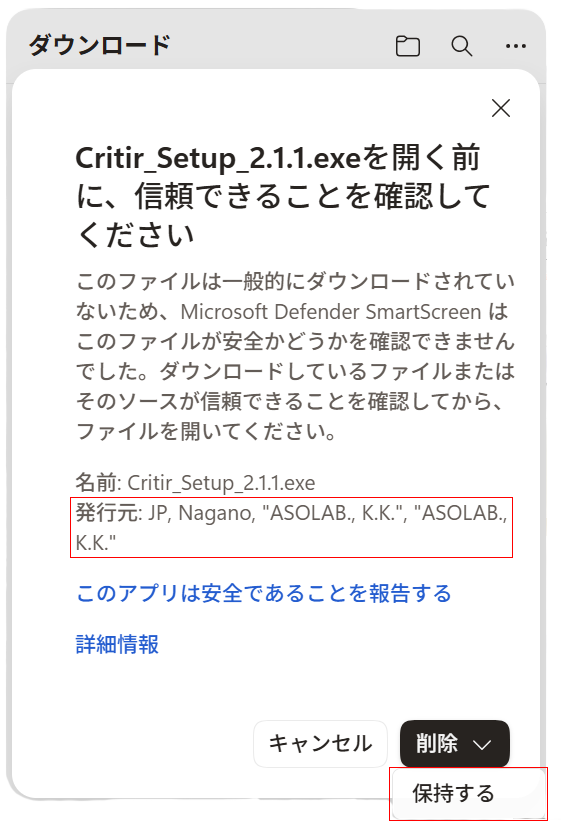
This happens because CRITIR is a relatively new application, so Windows and browsers treat it as an "uncommonly downloaded app". There is nothing wrong with the file itself. Confirm that the publisher is shown as "ASOLAB., K.K.", then continue with the steps below.
1. Browser download warning
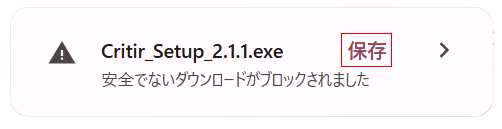
When you download the installer, your browser may show a warning such as "This file isn't commonly downloaded" or "Insecure download blocked". The exact wording varies by browser and version, but in every case you can continue by choosing "Save" or "Keep" instead of deleting the file.
Google Chrome
Click "Save" next to the file name.
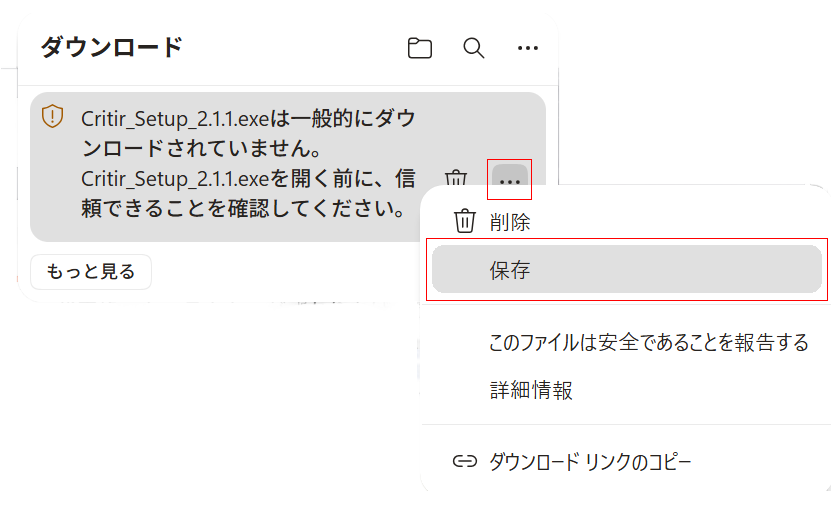
Microsoft Edge
- In the downloads list, click "…" on the file and select "Save"
- If "Make sure you trust Critir_Setup before you open it" appears, click the "∨" next to "Delete", then "Keep"
2. Warning when running the installer (Windows SmartScreen)
When you run the downloaded installer, a blue screen saying "Windows protected your PC" may appear.
- Click "More info" on the screen
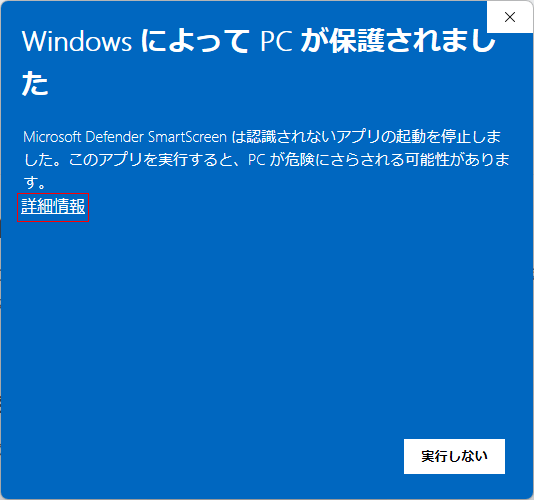
- Confirm that the publisher is "ASOLAB., K.K.", then click the "Run anyway" button that appears
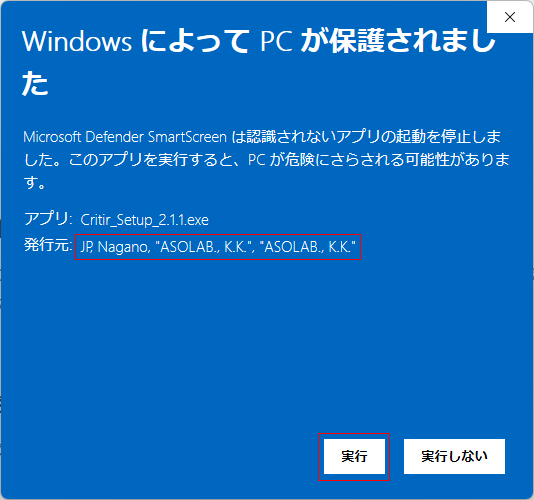
The installer will now start. Follow the on-screen instructions to complete the installation. For detailed installation steps, see System requirements and installation.
If you still cannot install
- Antivirus software may be quarantining or blocking the installer. Temporarily release it from quarantine or add an exclusion, then try again.
- If the problem persists after trying the above, contact us via the form below.
Open the contact form →
License activation fails
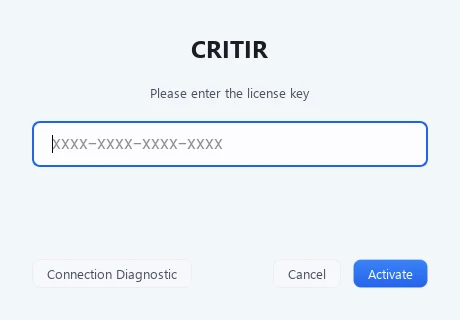
The connection fails, for example on a corporate network
Press Connection Diagnostic on the license activation screen to check the connection to the license server. The result is saved as a file on your desktop — please attach it when you contact us. It helps pin down issues on corporate networks with proxies or SSL inspection.
"Device limit reached" is shown
The number of devices (PCs) allowed by your license has been exceeded.
- If CRITIR is in use on another PC, quit the app there and try again
- If a device has stopped communicating, a confirmation to release inactive devices appears. Releasing it removes only that device's registration so you can sign in on this PC (devices in use are not disconnected)