
Settings
What you can change in Common Settings — image export, temperature mask, type/judgment/part, language, temperature unit, theme and display scale
Tune the tool
to where and how you work.
In this chapter you will learn to
- Switch the theme to suit your surroundings
- Change the display language and temperature unit
- Curate the type, judgment and part options
- Change the UI display scale
The look of the app (theme), the language, the temperature unit and export defaults are changed in Common Settings.
Opening Common Settings
Open it from Settings ▾ → Common Settings... on the toolbar. The same screen is available from Settings ▾ on the project list screen.
Settings are kept application-wide and carry over when you switch projects (only the temperature mask is saved per project). Language & Temperature Unit and Appearance are saved as soon as you choose an option.
| Tab | What it configures | |
|---|---|---|
| 1 | Image Export | Overlays included in right-click and drag & drop export |
| 2 | Temperature Mask | Temperature range excluded from statistics |
| 3 | Type Settings | Measurement types (delamination, crack, …) and their drawing style |
| 4 | Judgment Settings | Judgment options (no anomaly, needs checking, …) |
| 5 | Part Settings | Part options (wall, column, …) |
| 6 | Language & Temperature Unit | Display language and temperature unit |
| 7 | Appearance | App color theme and the zoom level of the whole UI |
Common Settings opened from Settings ▾ on the project list screen has no type, judgment or part tabs (open a project to change those).
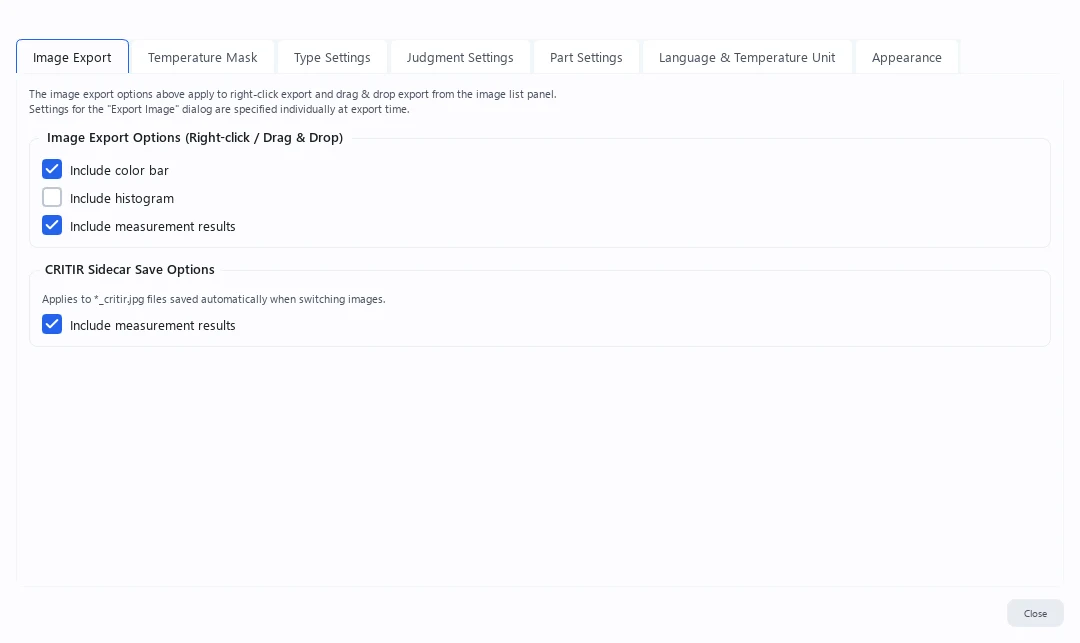
Image Export
Configures which overlays are included in right-click export and drag & drop export from the image list panel.
| Option | Description | Default |
|---|---|---|
| Include color bar | Overlay the temperature scale bar | On |
| Include histogram | Overlay the histogram | Off |
| Include measurements | Overlay measurement markers | On |
The CRITIR sidecar save options below control whether measurements are burned into the *_critir.jpg file that is saved automatically when you switch images.
These settings are independent of the Export image dialog options, which you choose individually each time you export.
Temperature Mask
Masks temperatures outside the specified range and excludes them from statistics (max, min, average, …), so outliers and unmeasurable pixels do not skew the numbers.
| Item | Description | Default |
|---|---|---|
| Enable temperature mask | Turns the mask on / off | Off |
| Lower / upper limit | The range that is not masked | -20 °C / 1600 °C |
| Show masked areas as visible image | On: masked areas show the visible image. Off: they are shown in grey | Off |
Preset buttons apply typical values quickly.
| Preset | Lower / upper |
|---|---|
| Default | -20 °C / 1600 °C |
| Strict | -10 °C / 500 °C |
| Relaxed | -40 °C / 2000 °C |
See Infrared image analysis › Temperature mask for details.
Type / Judgment / Part Settings
These manage the type, judgment and part options assigned to measurement results. All three tabs share the same structure.
- Built-in entries cannot be deleted, but unchecking them hides them from the edit panel buttons
- Custom entries can be added and removed freely
- Entries checked under Show as button appear as buttons in the inspection result edit panel
In Judgment Settings, click the color dot on a judgment's row to change that judgment's color. The color applies both to reports (PDF, Word and preview) and to the screen (inspection result buttons, the inspection workspace and the Measurement Review table), and you can set it for custom judgments too. Right-click the color dot to restore the default color. The built-in judgments also include Monitor (it is not shown as a button in the inspection result edit panel by default; check Show as button to add it).
Type Settings additionally lets you choose a color, line style, fill pattern and prefix per type. See Measurement tools › Type/judgment settings for details.
Put only what you use on the buttons
Leave Show as button checked only for the types and judgments you actually use in the field, and the edit panel shows fewer buttons, so picking one is quicker. Built-in entries can't be deleted, but unchecking them hides them.
Language & Temperature Unit
| Setting | Options | Default |
|---|---|---|
| Display language | Auto (follow system) / 日本語 / English | Auto |
| Temperature unit | Celsius (°C) / Fahrenheit (°F) | Celsius |
Switching to Fahrenheit changes temperature display throughout the app — viewer, measurement results, reports, the HTML viewer and the 3D view. Temperature data saved in the project stays in Celsius, so switching units never alters your data.
°F for one overseas report, Celsius data underneath
Switch to Fahrenheit, export the report or HTML viewer, then switch back. Temperature data is always stored in Celsius, so going back and forth never changes a value (each switch needs a restart).
Both language and temperature unit take effect after you restart the application.
Appearance
Sets the app's color theme and display scale together.
Theme
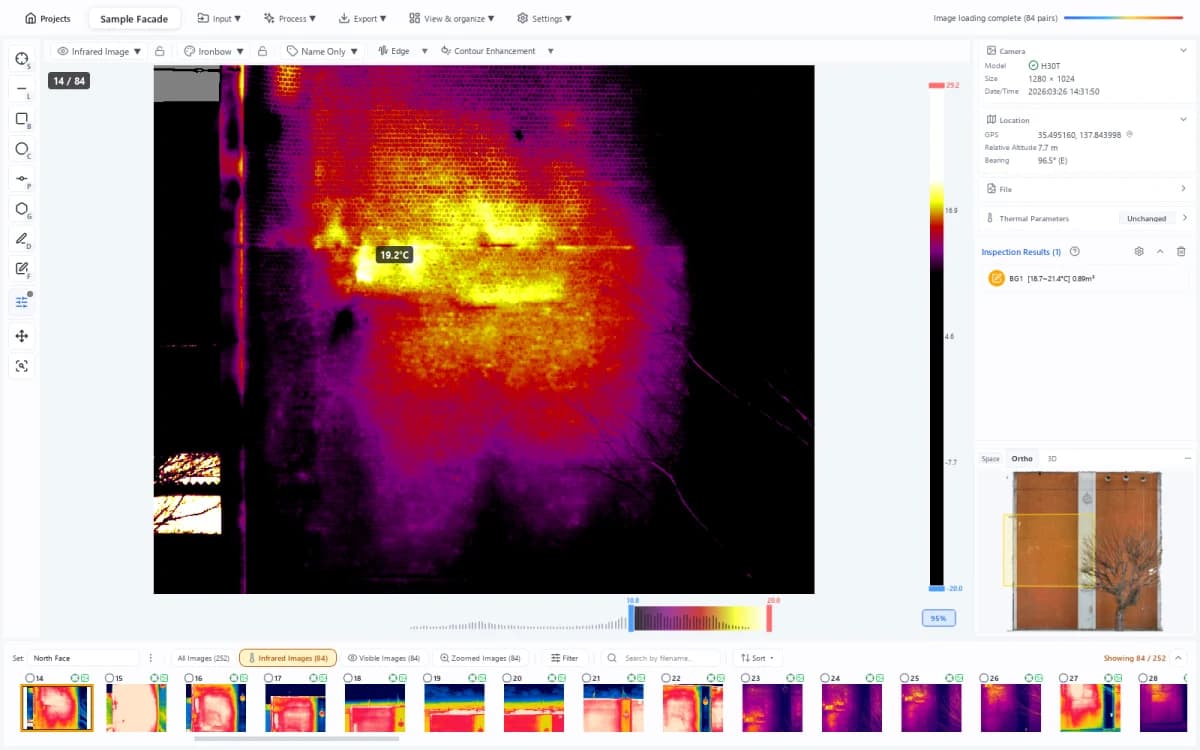
Choose the color scheme of the whole app from Dark / Light / Auto (follow system) (default: Light).
| Option | Description |
|---|---|
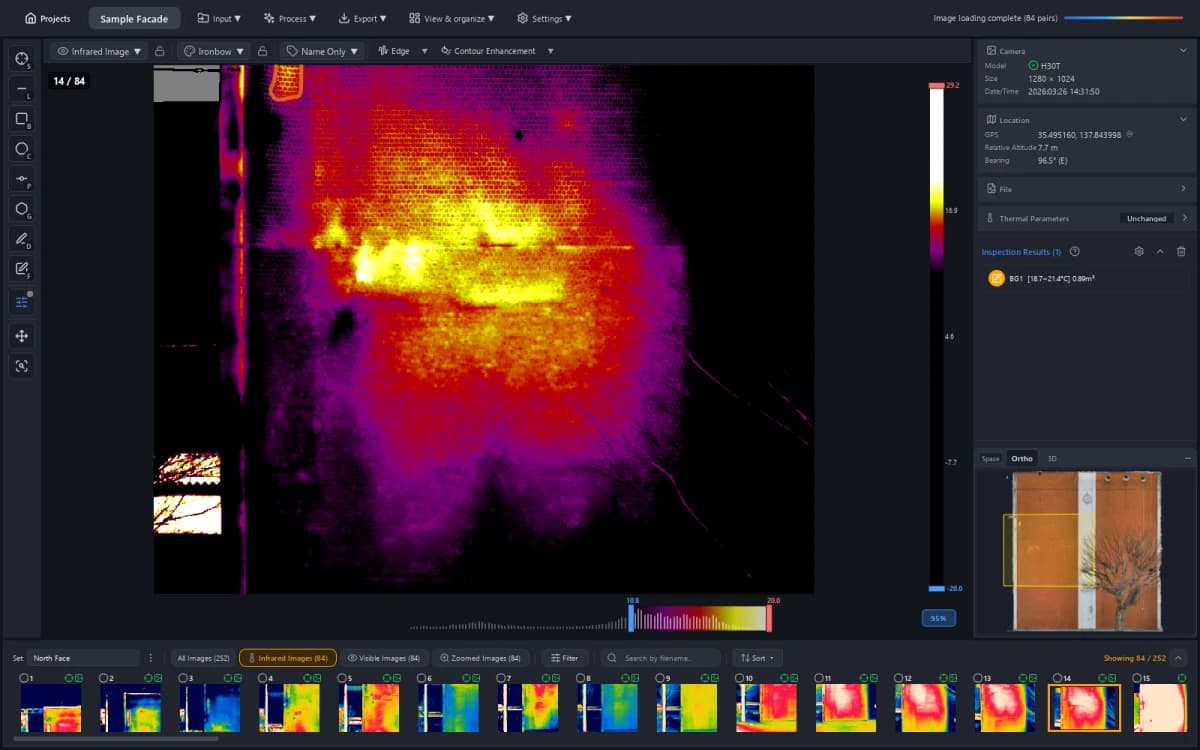
| Dark | Dark background. Makes image colors and temperature distribution easy to read, and suits work in dim locations |
| Light (default) | Light background. Suits bright rooms, projector presentations and screen sharing |
| Auto (follow system) | Follows the Windows "Choose your mode" setting automatically |
Display Scale
Choose the zoom level of the whole UI from 90% / 100% / 125% / 150% / 175% / 200% (default 100%). Use it when text and buttons are too small on a high-resolution display.
Both theme and display scale take effect after you restart the application.