
What is R-JPEG? Inside a drone thermal image — why the JPEG you see is not the temperature data
Open a DJI drone thermal image (R-JPEG) in an ordinary image viewer and all you get is a colored picture. This illustrated guide explains the three things packed into one file — the picture, the raw thermal data, and the calculation inputs — why you cannot read temperature from colors, why the JPEG and the thermal data can have different resolutions, how it differs from FLIR radiometric JPEGs, where the DJI Thermal SDK and DJI Thermal Analysis Tool fit, and what to know about High Res mode.
Key points
- An R-JPEG looks like a JPEG but carries temperature data. One file holds a colored picture, raw thermal data for every pixel, and the inputs needed to compute temperature (emissivity and so on)
- An ordinary image viewer shows only the colored picture — and you cannot work backwards from those colors to temperature. The same color can mean temperatures more than 10 °C apart in different images
- The JPEG and the thermal data can have different resolutions. On the Matrice 30T, for example, the JPEG is 1280×1024 while the thermal data is 640×512
- Reading temperatures requires software built on the DJI Thermal SDK. Because the calculation inputs are kept, you can change emissivity and other settings after capture and recompute
"It has temperature in it" — so why is it just a picture?
If you are new to drone thermal inspection, one of these may sound familiar:
- You open your thermal images in the photo viewer and see a rainbow-colored picture — but no temperatures anywhere
- You try to read temperatures by picking colors with an eyedropper tool and matching them against the color bar
- You hand the images to an analyst and are told "there is no temperature data in these"
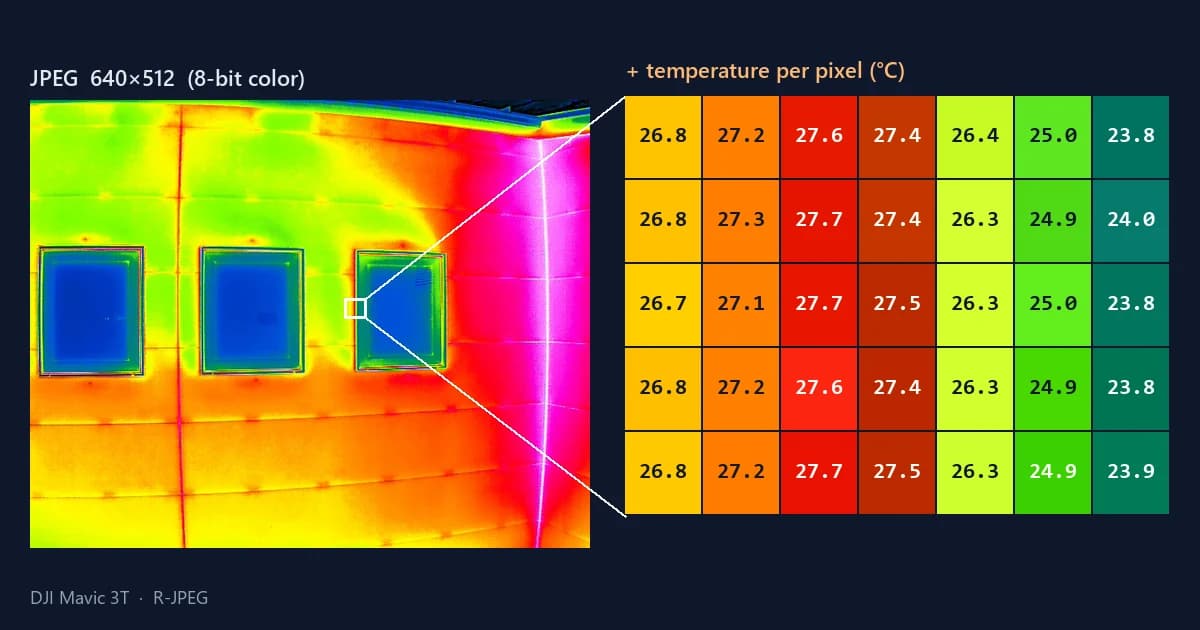
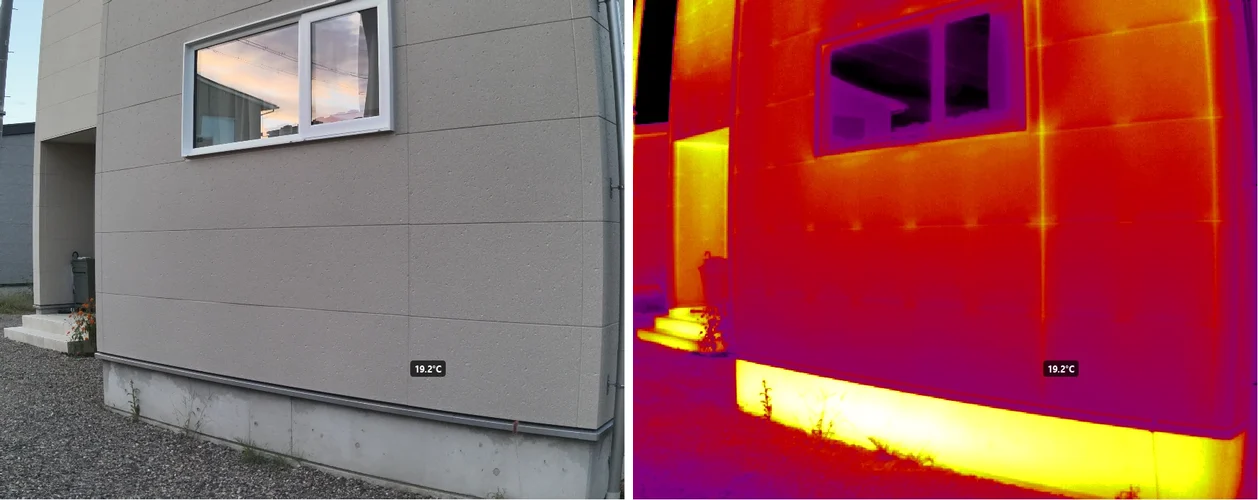
The R-JPEG files that DJI thermal cameras save end in .JPG, but they are not ordinary photos. The left side of the image above is what an image viewer shows. The right side shows the temperatures stored for a 7×5 pixel patch of that same image, read out with DJI's official SDK.
The colors you see and the temperatures behind them are two different things. This article unpacks what is inside an R-JPEG and why you should never read temperature from the colors.
Inside an R-JPEG — three things in one file
Besides the image itself, the JPEG format has room for extra information that cameras and software can write. Exif data — capture time, GPS position — is one example. R-JPEGs use the same mechanism to store temperature information alongside the picture.
Broken down, the contents are:
- The picture you see: an ordinary 8-bit JPEG, colored with whatever palette was selected at capture time. This is all that photo viewers and browsers display
- Raw thermal data: a raw value for every pixel, recording the amount of infrared radiation the sensor received. The Matrice 4T specifications list the photo formats separately as "JPEG (8bit)" and "R-JPEG (16bit)"
- Calculation inputs: what is needed to convert raw values into temperatures, including the capture-time settings for emissivity, reflected temperature, distance, humidity and air temperature
The documentation for ExifTool, the standard tool for reading image metadata, also lists fields such as object distance, emissivity, relative humidity, ambient temperature and reflected temperature in DJI R-JPEGs.
The key point: you need ② and ③ to compute temperature. ① is a picture made for human eyes, not the part you measure from.
You cannot get temperature back from colors
"If I know the palette and the color bar, can't I work out the temperature from the color?" Let's test it on real images. Both of these R-JPEGs were taken of the same house, with the same camera (DJI Mavic 3T) and the same palette.
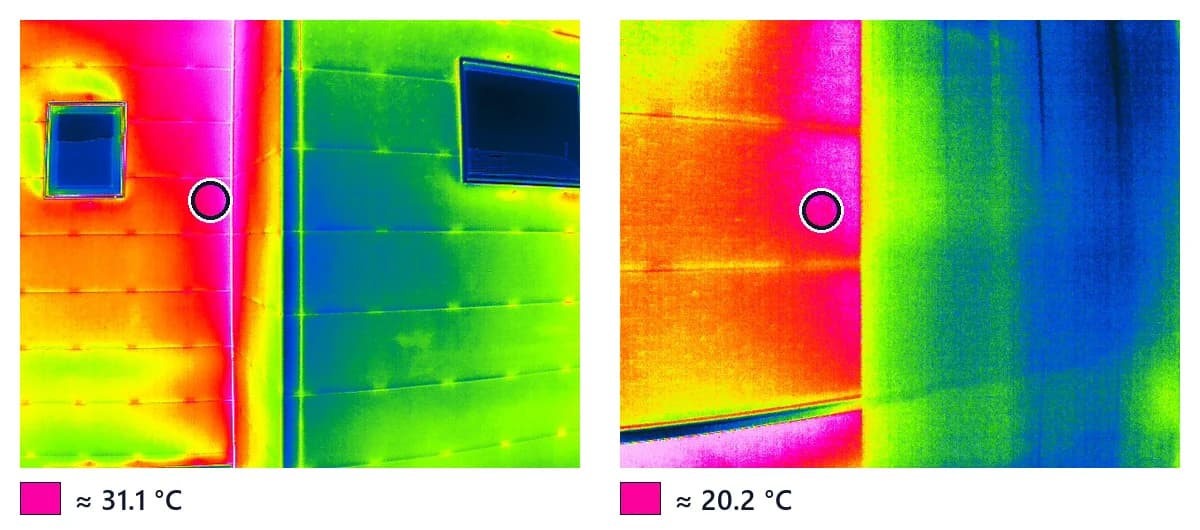
The circled spots are almost exactly the same pink. Read the thermal data, though, and the left one is about 31 °C while the right one is about 20 °C — around 11 °C apart for the same color.
The reason is that the mapping from temperature to color changes from image to image.
- Each image has its own display range: many thermal cameras automatically fit the color range to the temperatures in view. Change the range and the same color means a different temperature
- Values outside the range stick to the end color: anything hotter or colder than the range gets the same color no matter how different it is
- Color has limited steps: once temperatures are reduced to 8-bit color, small differences are rounded off
The left image includes sky and shadow, so its range is wide; the right image is just wall, so its range is narrow. That is why the same pink points to different temperatures. Reading temperature from screenshots or color-only images simply cannot be done accurately.
If you open an R-JPEG in an image editor and save it again, or crop it, the extra information holding the raw thermal data and calculation inputs can be lost. The file looks the same but no longer has readable temperatures. Keep the original files untouched and work on copies.
The JPEG and the thermal data don't always have the same resolution
Here is another easy-to-miss trap: the visible JPEG and the thermal data can have different pixel counts.
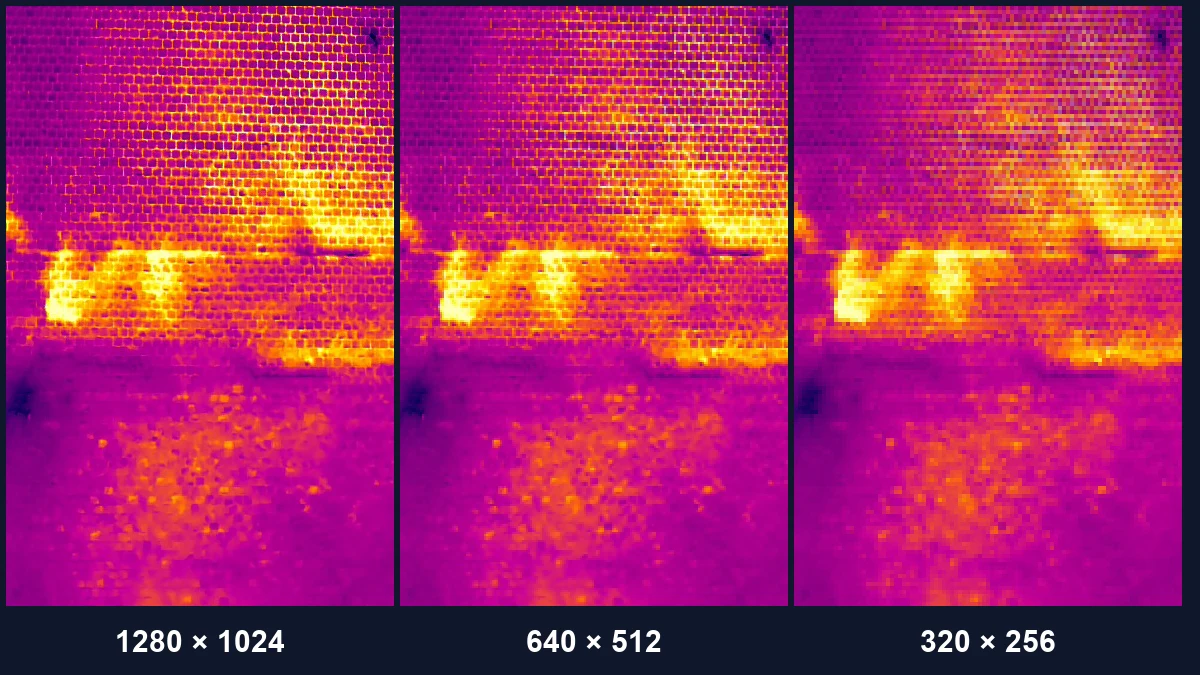
In the DJI Matrice 30T images we have on hand, the visible JPEG is 1280×1024, while the thermal data read through DJI's official SDK is 640×512. Each thermal pixel corresponds to a 2×2 block of JPEG pixels. Our Matrice 4T images showed the same combination.
This is how the cameras are specified. DJI's official specifications for the Matrice 4T list the thermal camera resolution as 640×512, or 1280×1024 with super-resolution enabled. The picture can be rebuilt at a finer resolution, but the sensor's actual temperature pixels remain 640×512.
| Model (example) | Visible JPEG | Thermal data |
|---|---|---|
| DJI Matrice 30T (our images) | 1280×1024 | 640×512 |
| DJI Matrice 4T (our images) | 1280×1024 | 640×512 |
| DJI Zenmuse H30T (our images) | 1280×1024 | 1280×1024 |
| DJI Mavic 3T (our images) | 640×512 | 640×512 |
This matters in a few ways:
- Image software and libraries report the JPEG size. If you load an R-JPEG with, say, a Python image library and pick coordinates from it, you will be pointing at a position twice as far out as the thermal data expects
- Coordinates must be converted to the thermal data's resolution before you read a temperature. JPEG pixel (720, 320) is thermal pixel (360, 160)
- Small targets are not measured as finely as the picture suggests. Each 2×2 block of visible pixels shares a single temperature value
Handling temperatures in your own tools
Judge the size of the thermal data by the resolution the SDK returns for the thermal data, not by the size of the image file. CRITIR likewise records measurement positions in thermal-data coordinates and converts them when drawing over the picture.
How is this different from FLIR radiometric JPEGs?
DJI is not the only maker that puts temperature into JPEGs. FLIR cameras also store the information needed to compute temperature inside the JPEG — a radiometric JPEG. In a broad sense, both are "R-JPEGs".
The idea is the same — picture + raw data + calculation inputs. What differs is how they are stored and how values are converted.
| DJI R-JPEG | FLIR radiometric JPEG | |
|---|---|---|
| Visible picture | JPEG colored with a palette | JPEG colored with a palette |
| Raw thermal data | Stored in DJI's own format | Stored as a raw image in FLIR's own data block |
| Calculation inputs | Emissivity, reflected temperature, distance, humidity, air temperature and more | The same settings plus per-camera calibration coefficients (Planck coefficients such as PlanckR1 and PlanckB) and more |
| Official way to read temperatures | DJI Thermal SDK, DJI Thermal Analysis Tool | FLIR analysis software and SDKs |
Even though both are "JPEGs with temperature", their internal structures differ, so software made for FLIR cannot read temperatures from DJI R-JPEGs (and vice versa). That is why converting DJI images to FLIR format before analyzing them in FLIR software became common practice. We cover how to skip that conversion in Analyze DJI thermal images directly in CRITIR, no conversion needed.
Where the DJI Thermal SDK and DJI Thermal Analysis Tool fit
DJI provides two free tools for reading R-JPEGs:
- DJI Thermal SDK: a library for software developers. It supports Windows and Linux and lets you build R-JPEG processing and temperature measurement into your own software. The latest version at the time of writing is v1.8, released December 11, 2025
- DJI Thermal Analysis Tool 3: DJI's free official analysis app. You can open images and check temperatures in areas of interest. It can also batch-edit distance, humidity, emissivity and reflected temperature across multiple images, and batch-export reports. The latest version at the time of writing is v3.6.0
In other words, the official way into the temperatures in a DJI R-JPEG is the DJI Thermal SDK, and DJI Thermal Analysis Tool is DJI's own app built around it. Supported models change with SDK versions, so check DJI's official pages when you start using a new model.
High Res mode images are not for measuring
Some DJI thermal cameras offer a High Res mode. The thing to watch is that this mode is not meant for temperature measurement.
In the Zenmuse H30 series FAQ, DJI describes High Res mode as an observation mode that makes targets with small temperature differences stand out more clearly, and states that temperature measurement is not supported in this mode. If you need to record temperatures during an inspection, check the mode before you fly.
CRITIR can open High Res images, but temperatures are shown as reference values and thermal parameters such as emissivity cannot be changed. They are still useful for comparing relative temperature differences.
Why you can recompute temperatures after capture
Having the calculation inputs inside the R-JPEG has a welcome side effect: you can change emissivity or reflected temperature after capture and recompute the temperatures.
What is stored is not a finished temperature but "raw values + capture-time settings". Swap the settings in compatible software and new temperatures are computed from the same raw values. Forgot to measure reflected temperature on site, or shot metal parts with facade settings? In many cases you do not need to reshoot.
For what emissivity and reflected temperature actually mean and how to choose them, see Emissivity and reflected temperature on thermal cameras.
Checklist for working with R-JPEGs
- Photo format: some models list both JPEG and R-JPEG in their specifications (e.g. Matrice 4T). If you want to measure temperatures later, make sure you are saving R-JPEGs
- Capture mode: don't use High Res mode when you need to record temperatures
- Leave originals untouched: re-saving or cropping can strip the temperature information
- Resolution differences: if your own tools handle coordinates, compute them at the thermal data's resolution
Reading R-JPEGs in CRITIR
The thermal image analysis software CRITIR reads DJI R-JPEGs directly, without conversion, and redraws the image from the temperature data. Because colors are generated from temperatures rather than taken from the visible JPEG, you can change the palette and display range freely after the fact.
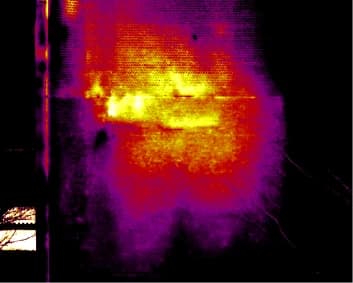
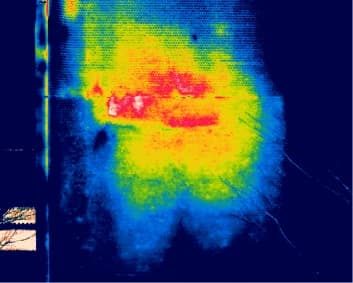
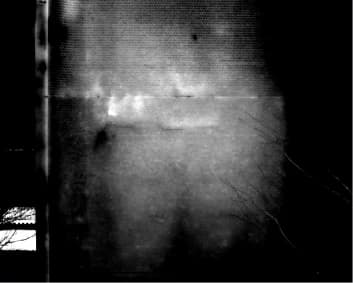
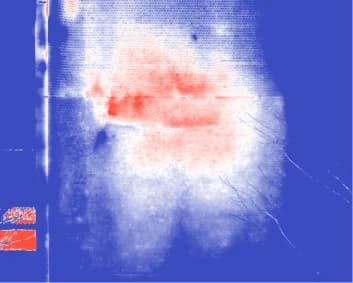
The temperature data is the same in all four — only the palette changes. It makes it obvious that color is just a way of presenting the data.
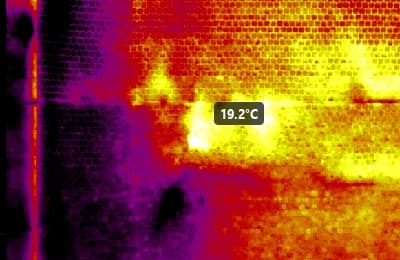
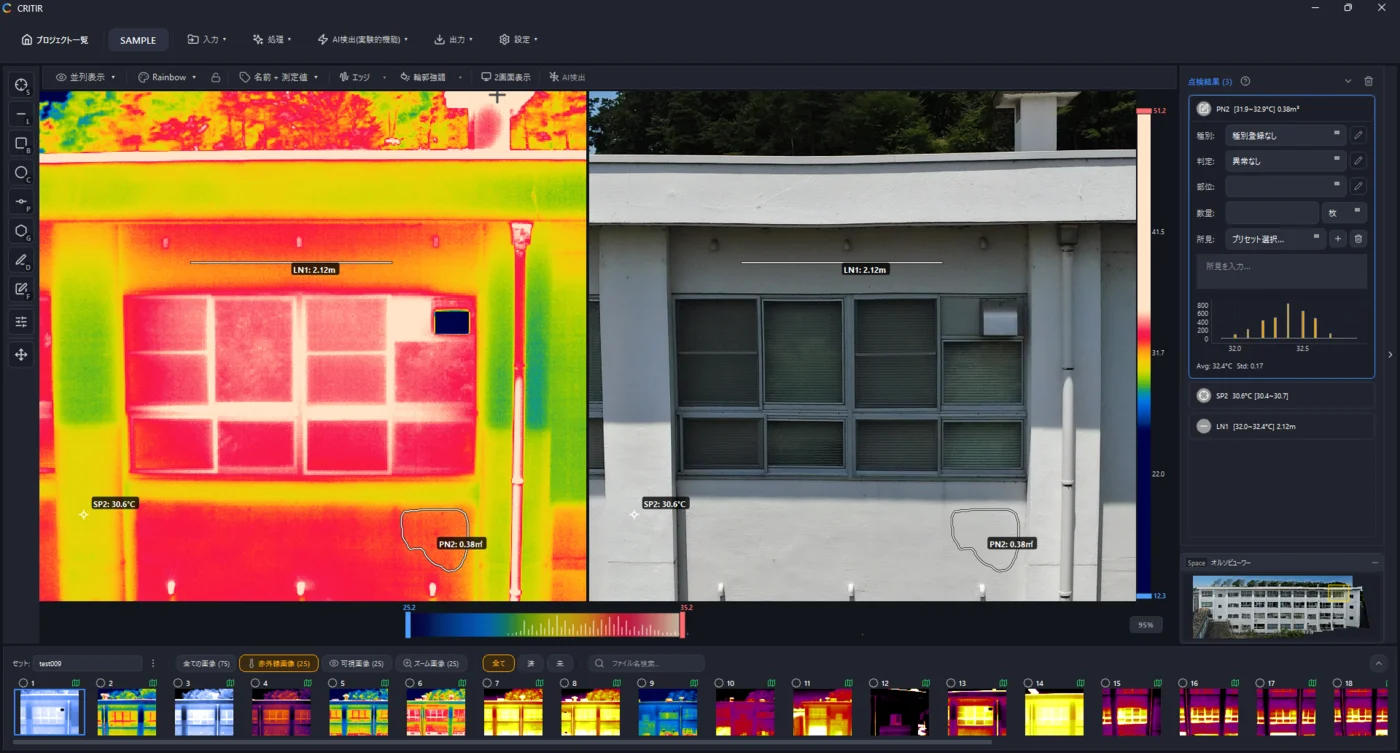
- Temperatures are read at the thermal data's resolution and overlaid on the picture, so positions stay correct even on models where the JPEG and thermal data resolutions differ
- From the Thermal parameters panel you can change emissivity, reflected temperature, distance, atmospheric temperature and relative humidity and recompute
- Besides DJI, thermal images from FLIR, HIKMICRO and other makers are handled in the same workspace
See Thermal analysis for how to tune the display, and Supported cameras for the list of models CRITIR can read.
FAQ
- What is an R-JPEG?
- A thermal image in JPEG format that carries temperature information. On DJI thermal cameras, one file contains a picture colored with a palette (an 8-bit JPEG), raw thermal data for every pixel, and the inputs needed to compute temperature, such as emissivity, reflected temperature, distance, humidity and air temperature. Because it looks like a normal JPEG, any image viewer can open it — but all you see is the colored picture. Reading temperatures requires compatible software.
- How do I extract temperature data from DJI thermal images?
- Open the images in DJI Thermal Analysis Tool 3, which DJI provides for free, or use software built on the DJI Thermal SDK for developers. Compatible software such as CRITIR reads R-JPEGs directly and lets you measure temperatures. Working backwards from the colors in the picture does not give accurate temperatures, because the palette and display range change from image to image.
- Why do the JPEG and the thermal data have different resolutions?
- On some models and settings, only the visible picture is saved at a higher resolution. For example, DJI's official specifications for the Matrice 4T list the infrared resolution as 640×512, or 1280×1024 with super-resolution enabled. In our own Matrice 30T and Matrice 4T images, the JPEG was 1280×1024 while the thermal data read through the DJI Thermal SDK was 640×512. In that case, halve the JPEG coordinates in both directions before looking up a temperature.
- Can I measure temperatures in images captured in High Res mode?
- DJI describes the High Res mode of the Zenmuse H30 series as a mode for observing targets with small temperature differences, and states that it does not support temperature measurement. If you need temperatures, capture in a mode that supports measurement. CRITIR can open High Res images, but temperatures are shown as reference values and thermal parameters such as emissivity cannot be changed.
Summary
- An R-JPEG packs a visible picture, raw thermal data and calculation inputs into one file. Image viewers show only the first
- You cannot get temperature back from colors. Display ranges differ between images, so the same color can be more than 10 °C apart
- The JPEG and the thermal data can have different resolutions (e.g. 1280×1024 vs 640×512 on the Matrice 30T). Work in thermal-data coordinates
- FLIR radiometric JPEGs follow the same idea, but their internal structure differs, so each maker's software cannot read the other's files
- The official way into the temperatures is the DJI Thermal SDK. Because the calculation inputs are kept, you can change settings and recompute after capture
- High Res mode is for observation and does not support temperature measurement
If you want to read DJI R-JPEGs without conversion and go from temperature measurement to facade orthoimages and reports in one application, take a look at the CRITIR product page.
Sources
- DJI Enterprise, Matrice 4 Series Specs — thermal camera resolution (640×512; 1280×1024 with super-resolution), photo formats (JPEG (8bit), R-JPEG (16bit)) — enterprise.dji.com
- DJI Enterprise, Zenmuse H30 Series FAQ — High Res mode is for observation and does not support temperature measurement; DJI Thermal Analysis Tool 3 for post-processing — enterprise.dji.com
- DJI Enterprise, Zenmuse H30 Series Specs — H30T thermal resolution 1280×1024, photo format R-JPEG — enterprise.dji.com
- DJI Enterprise, Matrice 4 Series Downloads — DJI Thermal SDK v1.8 and DJI Thermal Analysis Tool 3 v3.6.0 (both December 11, 2025); the SDK targets Windows/Linux for building R-JPEG processing and temperature measurement — enterprise.dji.com
- DJI, DJI Thermal Analysis Tool 3 download page and user guide — batch editing of distance, humidity, emissivity and reflected temperature; batch report export — dji.com
- Phil Harvey, ExifTool Tag Names: DJI Tags — fields in DJI R-JPEGs such as object distance, emissivity, relative humidity, ambient temperature and reflected temperature — exiftool.org
- Phil Harvey, ExifTool Tag Names: FLIR Tags — the raw thermal image (RawThermalImage), emissivity and reflected temperature settings, and Planck calibration coefficients in FLIR JPEGs — exiftool.org
- Resolutions and temperatures in the images and tables were checked by the CRITIR team by reading our own captures (DJI Mavic 3T, Matrice 30T, Matrice 4T and Zenmuse H30T) through the DJI Thermal SDK.
Published: October 8, 2026 / Last updated: October 8, 2026
Analyze DJI thermal images directly in CRITIR, no conversion needed
Skip the conversion step for DJI R-JPEGs. CRITIR analyzes DJI thermal images directly, generates facade orthoimages, and produces reports — all in one app. Cut the cost and time spent on converter tools and conversion services.
Emissivity and reflected temperature on thermal cameras: why your readings don't match, and how to fix them
Thermal camera readings that disagree with a contact thermometer, windows and metal that look impossibly cold — most of the time it is not a faulty camera but emissivity and reflected temperature settings. This guide explains what a thermal camera actually measures, lists typical emissivity values by material, shows how to measure reflected temperature with aluminum foil, and covers distance and humidity, why metal and glass are hard, and how to correct the settings after capture.
How to choose a drone thermal camera for inspection: resolution, field of view, temperature measurement and data format
A visual guide to choosing a drone thermal camera. Compare 640×512 and 1280×1024 by working out how many centimeters one pixel covers on the target, check whether the camera is radiometric, understand R-JPEG and other data formats, pair it with a visible camera, and handle high-resolution modes. Includes official specs for the DJI Matrice 30T, Mavic 3T, Matrice 4T, Zenmuse H20T and H30T, and Skydio X10.